
So, you've created a survey and you're ready to send it out, however you want to change the style of the survey to more closely match your branding. How do you go about that?
When you go into your survey one of the options at the top is Themes. Under this tab the icons on the right hand side will also update.
General theme settings
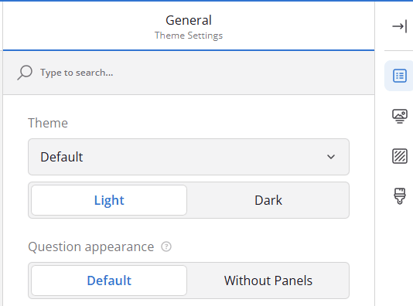
You'll start under the General settingfs and by default your survey will be in Light Mode with the Default theme and Question Appearance, however you can change this to suit your preferences.
Header theme settings
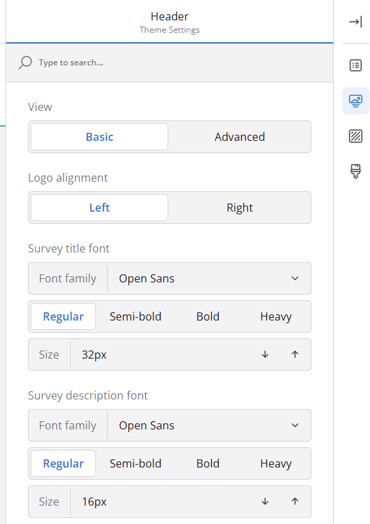
In the Header section (second icon on the right) you will have basic options by default where you can alter the settings of the survey title and description and decide if you want the logo you've added to the title to be on the left or right side of the title.
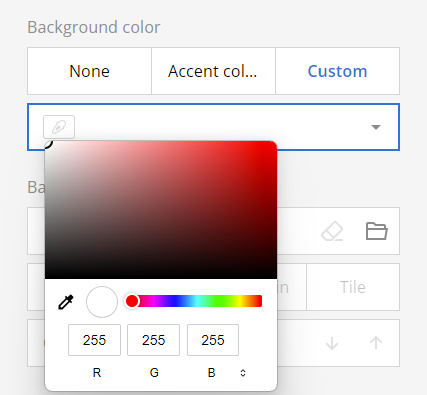
If you click Advanced, at the top, you'll have a lot more options to choose from including setting a background colour. You are able to add a custom colour here and if you click on the pipette on the left to select a custom colour, changing the section at the bottom to enter either RGB details or a Hex reference. You can also type a hex reference into the box.
Alternatively, you can upload a background image to have in the header and you can set its opacity so that the title and description you have for your survey are still visible.
Background theme settings
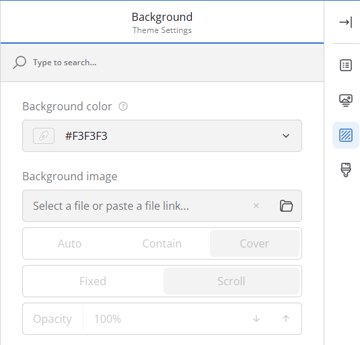
The next section is for the background of the survey itself, not just the header, and again you can set the entire background to be a particular colour, with some pre set colours available as well as the pipette to add a specific hex reference.
You're also able to add a background image to sit behind the questions, and set its opacity so that it doesn't overshadow the questions.
Appearance theme settings
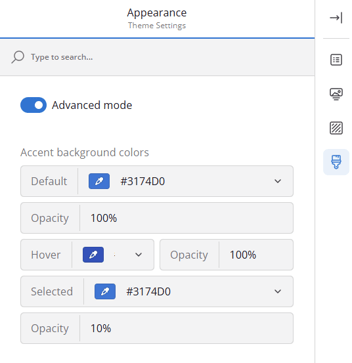
Finally, there is the Appearance section which dictates some changes that will apply to the entire survey. Here you are able to change the opacity of the question panels and change the font and font size for the writing in the survey. It is worth noting that if you had changed the font family and size in the header section, then making changes in the Appearance section won't overwrite that.
If you click the Advanced toggle at the bottom of these settings, you'll find a lot more options become available to give you as much flexibility as possible, including changing the colours of any buttons on the survey and even changing the colour when the mouse is hovered over them.
Undoing and resetting changes
At the very top of the screen you'll see these three options.
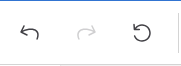 If you're unhappy with a change you've just made, you can click the left button to undo that. If you change your mind, the middle button redo that change. Finally, the button on the right will reset the theme settings of your survey back to the defaults.
Previewing your changes
As you make changes to the theme it's worth using clicking on the Preview button at the top of the screen to see how those changes look.
When previewing the survey to make sure it looks how you want it to, make sure you click the icon in the top corner that looks like a computer. If you click this button you'll get a list of other devices so you can simulate how your survey will look on them.
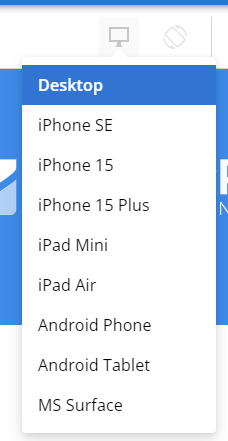
If you select a mobile phone option, you'll also be able to rotate the "phone" to see how it looks in both portrait and landscape.
For more information on surveys, check out the following links!