
You may have seen recently that we now have an upgraded new email editor so I thought it would be a good idea to de-mystify the editor and break down what the biggest upgrades are.
The layout
The most noticeable upgrade is the layout. The blocks on the left hand side are now icons rather than icons with writing (however you can hover your mouse over the icons to see the tool tips for the blocks.)
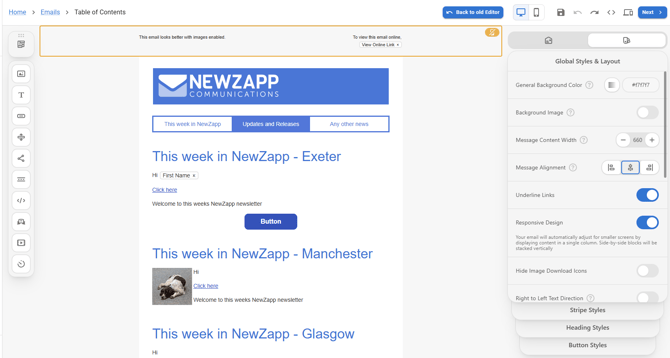
Additionally all of the settings that you would see on the left, you now see on the right. All the settings that were in the old version of the editor are in the new version, plus a few extras, but more on those later!
How to add blank structures or modules
In the old version of the editor it was easy to add new structures or old modules with the drop down menus on the left, but how can you do it now? Well the top icon of the list on the left is for Structures and Modules. Click that icon that icon and you'll see the structure menu where you can add new structures.
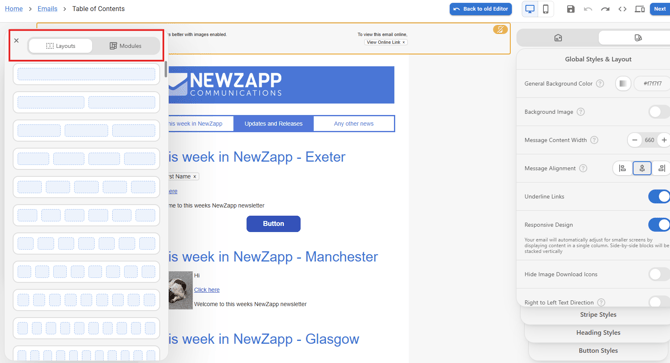
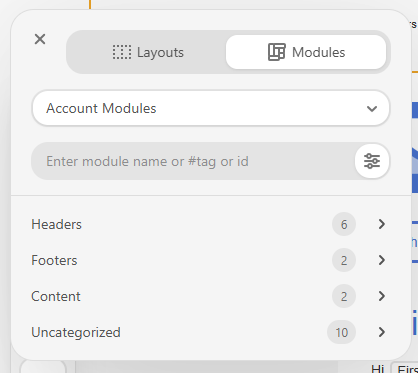
At the top of that menu there is a section which I've highlighted above where you can select Modules and clicking here will then show you a menu for your saved modules.
New settings for text boxes
There are two specific sections on the right for text boxes that I'd like to draw your attention to.
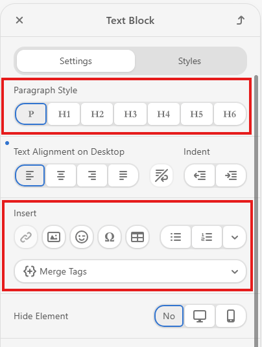
Paragraph Style - In the old version of the editor you can assign different style settings to text marked as a Paragraph, Heading 1, 2 or 3, however in the new version you can have all the way from Heading 1-6, which will be useful for those of you with especially long emails (NHS and Network Rail, I'm looking at you!)
Insert - This is where you will add hyperlinks and merge tags to your text, however you can now also add images, emojis and even tables to text boxes now. You also have more options available to you for bullet point or lettered lists.
Mobile Editing
You'll see from your Reports screen that a fair proportion of your emails will be opened now on mobile phone and making sure your emails are accessible on mobile is very important and now much easier!
At the top of the screen there's now an icon that looks like a mobile phone next to a computer monitor. If you click the phone the email designer will resize to show you how your email will look on mobile. Additionally, any changes you make to the settings while in the mobile view, will only apply to the mobile view.
If you have any questions, please reach out to your account manager or send an email to support@newzapp.com