
Here at NewZapp we try and provide you with a plethora of colours for use in your comms, however often organisations have their own custom colours that they'd like added to the account. This can be done by yourselves and I'll talk you through how below.
Do you have the access to do this?
Firstly, you'll need to check if you have the access to do this. In Create & Send, click the cog in the top right corner. Do you see an option for Brand Management? If so carry on to the next section of the article.
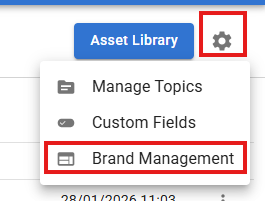
If not then you don't have this access. On your start screen, theres a tile in the top right corner you can see which of your colleagues are Admins on your account. Reach out to them and ask them to check if they have this Brand Management option.
If your admin doesn't have this option either, or you're the admin of your account, please get in touch with your account manager and we can update that for you.
Adding Brand Colours
In Brand Management click the Brand Colour option and you'll see a button to Add Brand Colour button.
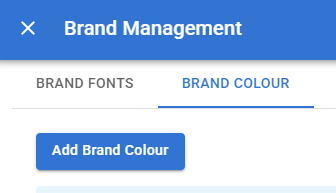
Click Add Brand Colour and a window will open with a colour picker. On the right hand side of it you'll see fields where you can enter either the hex code or RGB values for the colour you'd like.
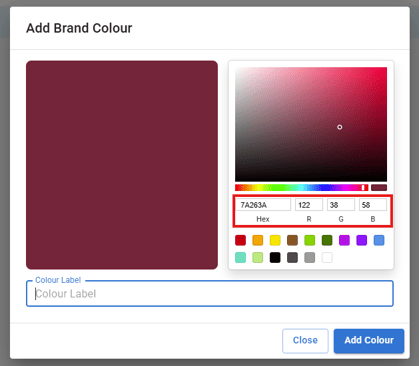
Then add a name for this colour record in the Colour Label field and click Add Colour.
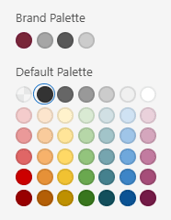
After that in the Email/Landing Page editor your Brand Colours will show at the top of the colour picker under Brand Palette
If you have any questions, please email support@newzapp.com or email your account manager