
Sometimes the comms you send out contains important information that you need to make sure your contacts have seen. Perhaps its an important safety notice, maybe its an invite to an upcoming event that they need to register for. Whatever it may be, it's always worth sending the email again, but how do you make sure you're not pestering the contacts who have already seen that information, or signed up to the event?
There are a few ways to do this. If you need to make an edit to the content first, then we recommend making a copy of the campaign and sending it to a Segment.
If you're doing internal comms, then you can send the campaign to a Microsoft Teams Channel.
For this example, however, I'm going to use the Resend button in Reports.
Finding the Resend button
The first thing to do is to find the campaign that you've sent previously in your Reports list. When you're in that screen you'll see a new tab titled Resend along the top of the screen.
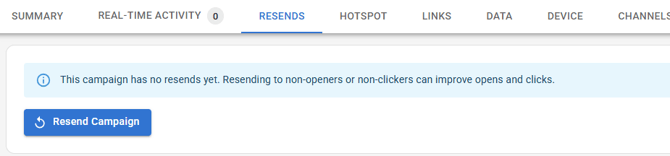
Any previous resends of that campaign will show here so if your colleagues beat you to it, you don't accidentally send the email a third time.
When you're ready click the Resend Campaign button.
Resending a Campaign
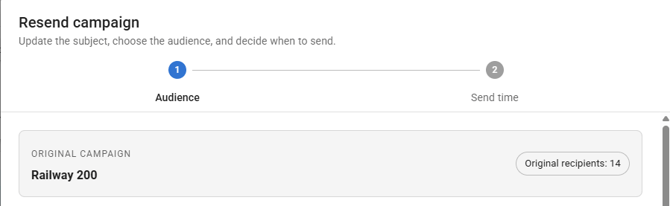
When you clikc that button you'll have the Resend Campaign window open up where you'l need to confirm a few details.The first thing you'll see is the original email name and the number of contacts it had been sent to originally. This is what the email is called in NewZapp. This is not the subject line.
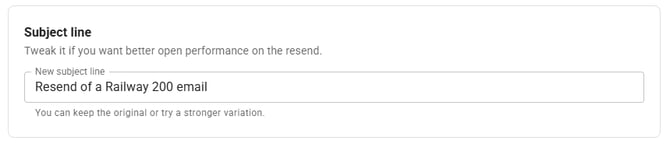
Beneath this is where you can set the subject line. The original subject line will be populated here automatically, however we recommending changing it to give it some variation from the original.
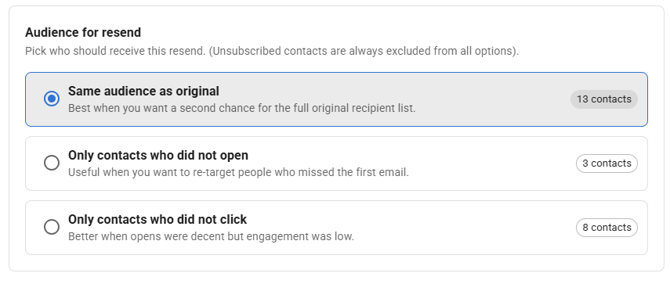
Now we set the audience. You have the option to resend it to just contacts that didn't open the previous email, just to contacts who didn't click a link in the previous emails, or you can send it to your entire audience again.
If anyone from your original audience has since unsubscribed, they will be omitted from the audience. Since my original send I've had one unsubscribed contact from this audience so my total audience is now 13 contacts.
 When you're happy with your choice, click Continue.
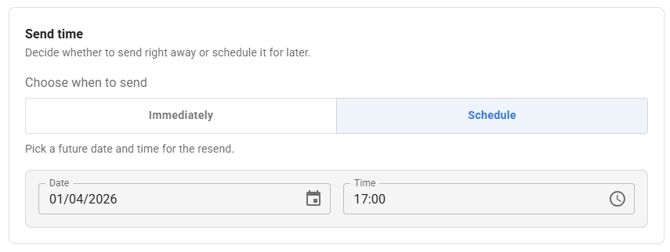
You'll now be on Step 2 of the resend where you can set a Send time. Like with the original email you can choose to resend immediately or you can schedule your resend to happen at a later time. I'm going to schedule my email for 5pm this evening.
Finally, you'll have a summary of the details you've confirmed up to this point.
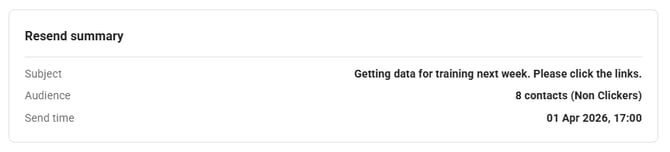
If you need to change anything, you can, otherwise click Confirm Resend.
Resend Reporting
Your Resends tab in the report will now have a lot more information for you. At the top of the screen you'll have your Resend summary which tells you the number of times the email has been resent as well as your increase in unique open and clicks due to the resend.

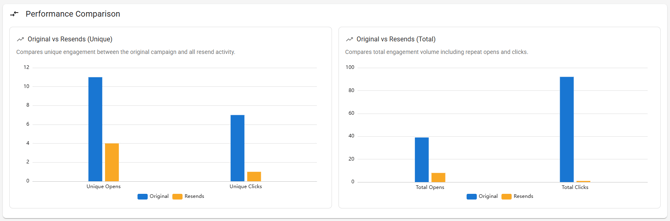
Next you get a performance comparison that will show you how your original email did compared to resends. The blue bars represent the Unique Opens and Clicks as well as the Total Opens and Clicks from the original campaign. All opens and clicks from resends are represented with orange bars.
Finally, we have the resend details. All of your resends will be listed here so you can see details specific to that email.

If you have any questions, please either email support@newzapp.com or contact your Account Manager.