
It is the browser’s way of storing files locally to speed things up, which is great until it starts serving stale junk like an overconfident waiter bringing yesterday’s soup.
The good news is you do not always need to dive into full browser settings and nuke everything.
In many cases, you can clear or bypass cache directly from the browser’s developer tools, which most people know from the “Inspect” or “Inspect Element” option.
Contents:
What “clearing cache using Inspect Element” actually means
How to clear your cache in Chrome and Edge
What “clearing cache using Inspect Element” actually means
When people say “using Inspect Element,” they usually mean opening the browser’s built-in developer tools and then either:
-
disabling cache temporarily while the tools stay open
-
clearing cached site data for the current site
-
forcing a reload that ignores cached files
That is often faster than clearing your entire browser cache, and it is a lot less scorched-earth.
Why you might need to do this
You might want to clear or bypass cache if:
-
NewZapp is not showing the latest updates
-
CSS or JavaScript changes are not appearing
-
a page looks broken after an upgrade deployment
-
a login page keeps looping or loading oddly
-
you are testing a site and want a proper fresh load
How to clear your cache in Chrome and Edge
Firstly either hit F12 on your keyword or right click anywhere in a blank area of NewZapp and select "Inspect" it is usually the bottom option in Chrome and Edge.
Once done - you will see all of the browser development tools. (They look really cool and you'll feel like a code wizard!)
Then in the top left area - Next to the home icon and web address bar you will see the refresh icon.
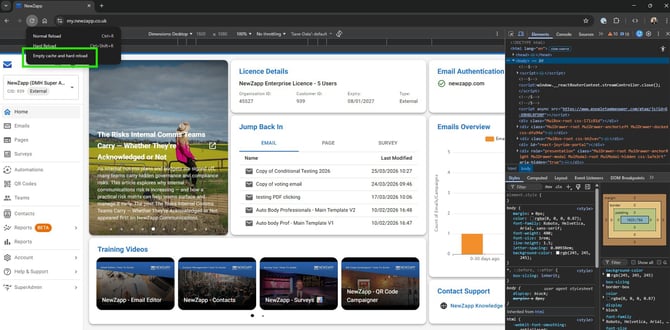
Normally you would just click this to refresh the page - but you are a coder now!!
Now, you right click the refresh icon and select "Empty cache and hard refresh"
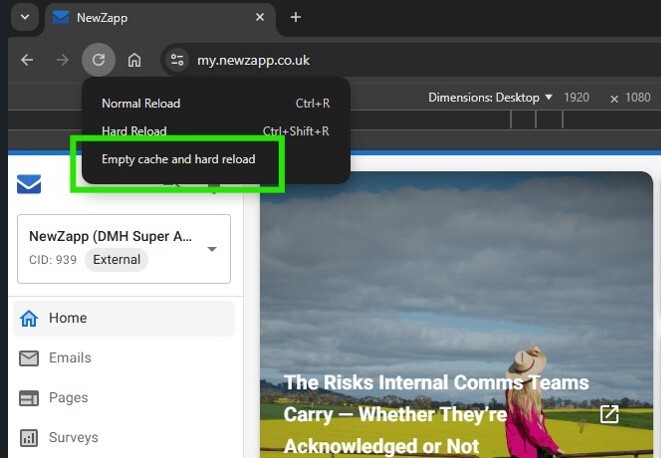
This action clears any old files your browser is hanging onto to be "helpful" and forces it to fetch all the very latest files you need for NewZapp.
Now, you should be able to navigate to the section you want without any annoying pop ups!