
NewZapp's reports section provides a lot of data, whether that's for individual emails, or if you're using the Insights screen to check data across a date range, but did you know that you can now export a months worth of data from your account?
How to export your data?
In Reports at the top of your email list, next to the settings cog you will see an Export button.
When you click this button you'll see this screen below and you can use that drop down box to select any month from the previous year. The default option will always be the current month to date.
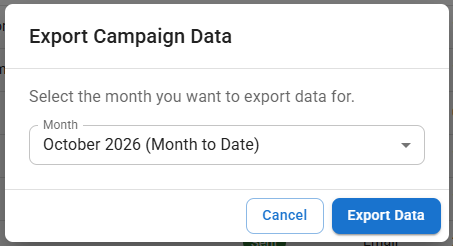
Select the month you'd like to export and click Export Data. After a few seconds a CSV file will be downloaded with the selected months data in it.
What is included in the export?
This CSV file will contain a list of every email sent from your account in the selected month as well columns that include but are not limited to;
- Subject Line
- Date and time the email was sent
- Number of contacts the email was sent to
- Number of opens
- Number of clicks
- Number of bounced contacts
- Number of unsubscribed contacts
If you have any questions please reach out to your account manager or email support@newzapp.com