---
title: Summary Tab
description: When navigating the Dashboards for Reports, you'll see a library of your sent or published communications. You'll find the data for Emails/Campaigns and Landing Pages from here.
---
[Skip to content](https://help.newzapp.co.uk/summary-page#main-content)
[More support](https://help.newzapp.co.uk/kb-tickets/new?hsLang=en-gb)
[](https://newzapp.co.uk/?utm_source=knowledge%20base&utm_medium=embed&utm_campaign=onsite&utm_content=NZLogo)
Open main navigation
Close main navigation
- [More support](https://help.newzapp.co.uk/kb-tickets/new)
- [Raise A Ticket](https://help.newzapp.co.uk/raise-a-ticket)
[Raise A Ticket](https://help.newzapp.co.uk/raise-a-ticket?hsLang=en-gb)
How can we help you?
- There are no suggestions because the search field is empty.
1. [Help Centre](https://help.newzapp.co.uk/?hsLang=en-gb)
2. [Reports](https://help.newzapp.co.uk/reports?hsLang=en-gb)
# Summary Tab
When navigating the Dashboards for Reports, you'll see a library of your sent or published communications. You'll find the data for Emails/Campaigns and Landing Pages from here.
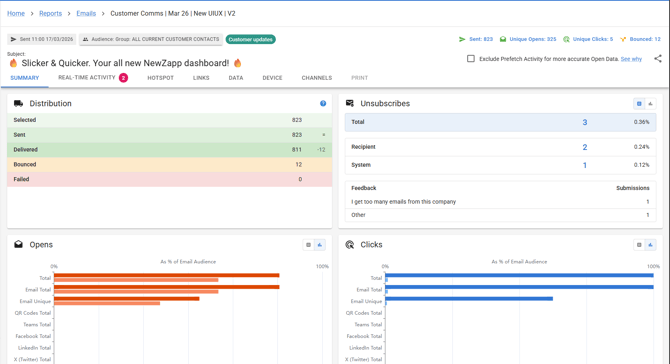
The Summary is the overview of the cake with each tab being a slice, such as:
- Summary
- Real time activity
- Hotspot
- Links
- Data
- Device
- Channels
- Resends
From this screen, at the very top, we have the Email name, Subject and date this was sent and to how many Groups. If you sent your comms to multiple groups, you can click the "audience" section to filter between them.

Below this is the Distribution tile in which we can see this email was sent to 823 contacts and delivered to 811, because of 12 bouced emails. We can also see the number of contacts who unsubscribed and any feedback they've given for why that is.
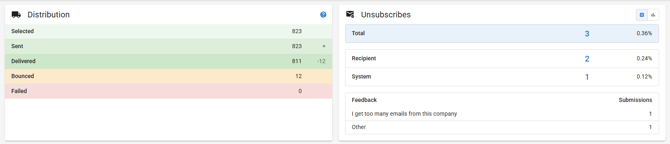
We then have Opens and Clicks graphs which show the total opens and clicks as well as the percentage of your email audience that opened or clicked.
You can also see the number of opens and clicks you've recieved on this campaign by by sharing it through other channels like through Microsoft Teams or Social Media.
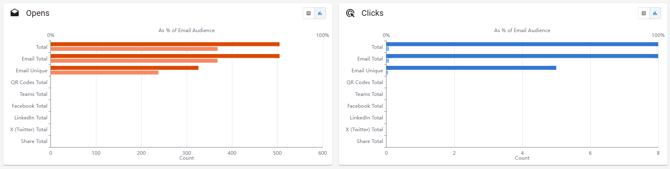
Next we have the Read Time, Devices and Sentiment tiles.
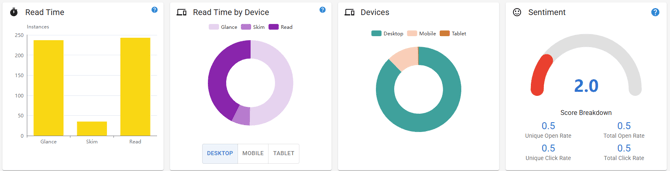
Lets take these one at a time.
The **Read Time** tile does what it says on the tin. You can see how long your contacts have spent reading your email. If they spend less than 3 seconds, we call that a Glance, from 3-8 seconds is considered a Skim and anything above 20 seconds is considered a Read.
**Read time by Device** gives you the same information, but presented in a donut chart. You can use the Desktop, Mobile and Tablet buttons beneath it to see how the read time changes depending on the device being used. You will always be on Desktop by default. Hovering your mouse over the different sections of the chat will tell you the number in each.
**Devices** gives you a breakdwon of what devices your contacts are reading your emails on. This gives you an indication of how mobile friendly your emails need to be going forward to this same contact base.
**Sentiment** is a rating our of ten for how your email was interracted with by your contacts. This is based on Unique opens and clicks as well as Total opens and clicks.Top tip:
Unique opens/clicks: The number of unique contacts that have opened your campaign or clicked a link.
Total opens/clicks: The total number of times your campaign has been opened and links have been clicked. This figure is generallty higher because if a contact opens an email twice that would count as 1 unique open and 2 total opens.
Next we have the 'Peak Engagement Heatmap:
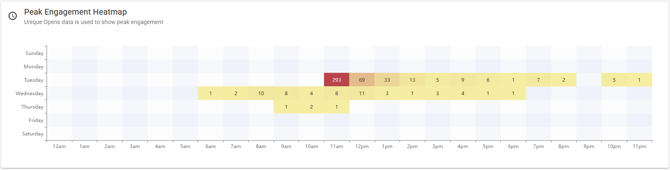
This is a fantastic tool to identify trends and engagement at different times of the day. For instance we can see from my Email above, Tuesday between 11:00 and 12:00 was a peak. This can be used to influence scheduled sending times. Our best practice is to schedule an email for an hour or two ahead to ensure there's time for any corrections missed in Proofing stages and for any missed content to be added.
- [Create and Send](https://help.newzapp.co.uk/create-and-send?hsLang=en-gb)
- [Surveys & Forms](https://help.newzapp.co.uk/surveys-forms?hsLang=en-gb)
- [Contacts](https://help.newzapp.co.uk/contacts?hsLang=en-gb)
- [Reports](https://help.newzapp.co.uk/reports?hsLang=en-gb)
- [Settings](https://help.newzapp.co.uk/settings?hsLang=en-gb)
- [Training Videos](https://help.newzapp.co.uk/training-videos?hsLang=en-gb)
- [Integrations](https://help.newzapp.co.uk/integrations?hsLang=en-gb)
- [Other Topics](https://help.newzapp.co.uk/other-topics?hsLang=en-gb)
- [General](https://help.newzapp.co.uk/general?hsLang=en-gb)
[](https://newzapp.co.uk)
Bradley House, Park Five Business Centre
Exeter
Devon. EX2 7HU
[mailto:support@newzapp.com](mailto:support@newzapp.com)
Copyright © 2024,