---
title: How to use Dynamic Content to do A/B testing.
description: Within NewZapp you able to use Dynamic Content to filter the content in your emails depending o who is reading it. You can absolutely use this same process to do A/B testing.
---
[Skip to content](https://help.newzapp.co.uk/how-to-do-a/b-testing#main-content)
[More support](https://help.newzapp.co.uk/kb-tickets/new?hsLang=en-gb)
[](https://newzapp.co.uk/?utm_source=knowledge%20base&utm_medium=embed&utm_campaign=onsite&utm_content=NZLogo)
Open main navigation
Close main navigation
- [More support](https://help.newzapp.co.uk/kb-tickets/new)
- [Raise A Ticket](https://help.newzapp.co.uk/raise-a-ticket)
[Raise A Ticket](https://help.newzapp.co.uk/raise-a-ticket?hsLang=en-gb)
How can we help you?
- There are no suggestions because the search field is empty.
1. [Help Centre](https://help.newzapp.co.uk/?hsLang=en-gb)
2. [Creating Content](https://help.newzapp.co.uk/creating-content?hsLang=en-gb)
# How to use Dynamic Content to do A/B testing.
Within NewZapp you able to use Dynamic Content to filter the content in your emails depending o who is reading it. You can absolutely use this same process to do A/B testing.
### **Setting up the contacts**
Before we can start assigning the dynamic content we need to make sure we have our contacts set up correctly. The dynamic content is based off of fields in the contact card and in this instance I think it'll make the most sense to add a custom field. I would recommend adding this field during the contact import process.
Create a contact file file for the contacts you want to use for the A/B testing (its OK if those contacts are already in NewZapp. No duplicate record will be created) and add a column to that file. For simplicity I'm going to call that column Group and assign each contact either Group A or B.
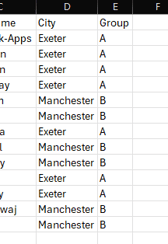I'm then going to split my contact list into two contact files with everyone in Group A in one file and Group B in another, so that I can upload them into seperate groups which will help with the reporting.
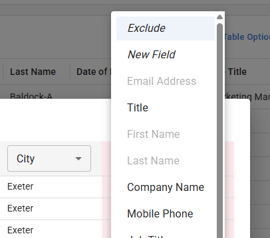
When you import a contact file, NewZapp will do its best to determine what each column is for. If it doesn't recognise the column that data will be exluded however you have the option to add a custom field here and that's what we're going to do. Click where it says Exclude and and select "New Field"
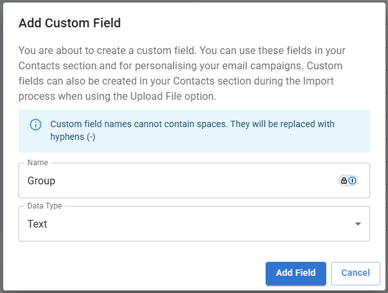
In the Add Custom Field window, set the name to Group and then click Add Field.
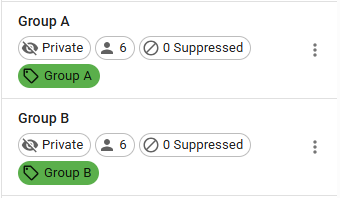
Then choose a group to add these contacts to and finish the import. For reporting I recommend uploading the contacts into seperate groups depending on whether or not they're group A or B.
### **Creating the email**
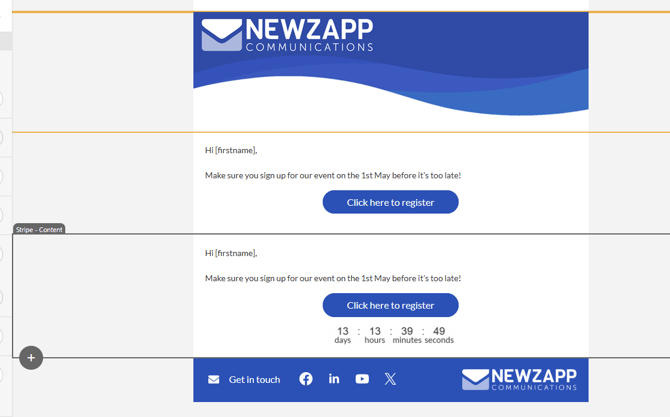
I won't spend too long here. If you're interested in doing A/B testing then you already know how to build an email in NewZapp, however I'd make sure you have something like a link or a button in each as it will help determine which version got more enagegment from your contacts.
For my example email, I want my contacts to register fo an event we're hosting and I want to know if using a timer block is an effective incentive.
### **Assigning Dynamic Content**
Once you've got your email built and ready to go it's time to assign the dynamic content. Select the stripe or structure of your email sections and on the left you'll see a Conditions button. Switch the slider on for Apply Display Conditions.
In the window that pops up set the top field to be the custom field we created above, leave the operator as Equals and set the the Value as whatever you've put in that column. For me the Field is set to Group and the Value is set to A.
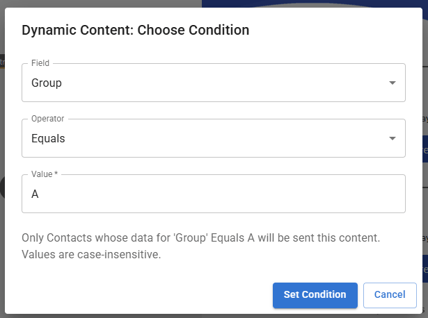
When you're done, click Set Condition and you'll know that this has been applied, because that structure or stripe will have orange lines around it. Once you'be done that for the different sections of your email, click on the preview icon at the top of the screen and test that the dynamic content behaves the way you want it to.
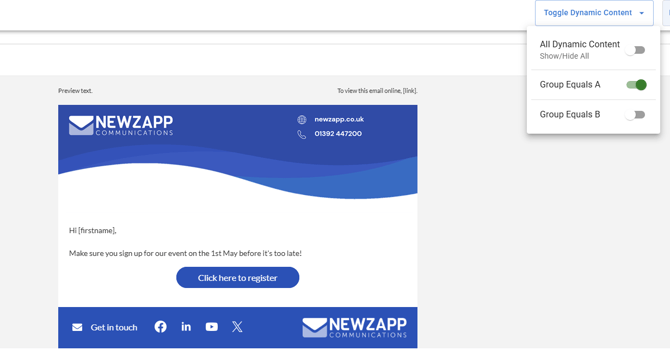
So I can see that if my contact is in Group A they'll only see the first section of the email without the timer block.
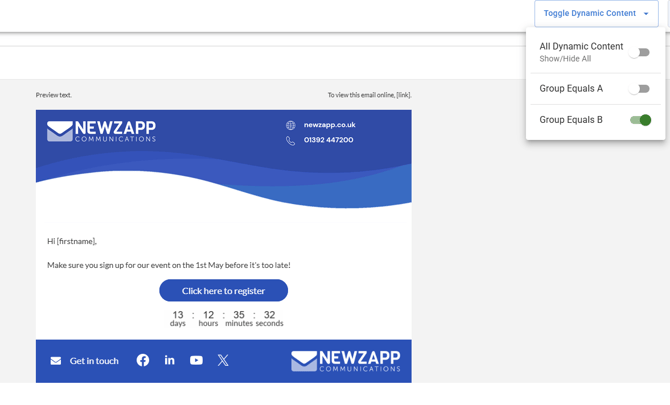
And group B see the email with the timer block.
Once you're happy that everything is working go ahead and send the email, making sure you select the groups you created earlier on.
### **Checking the results fo the A/B testing**
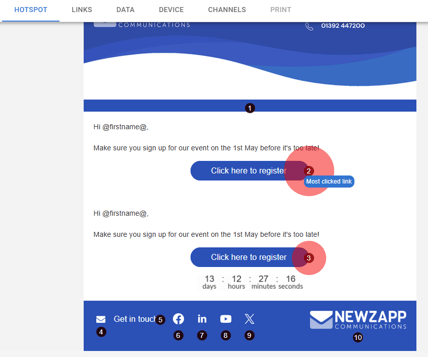
In the reports screen for this email I can check the hotspots tab to see which of the "Click to register links" got clicked the most. It looks like the version without the timer is more likely to get a click.
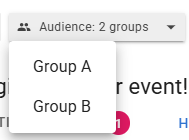
I can also check the data for each group individually (this is why I recommend seperating out the groups earlier on). The top right of the reports screen I can see an Audience drop down box and in this box I can view just Group A or B.
If you have any questions about this please email support@newzapp.com or reach out to your account manager.
- [Creating Content](https://help.newzapp.co.uk/creating-content?hsLang=en-gb#main-content)
- [Email](https://help.newzapp.co.uk/creating-content?hsLang=en-gb#email)
- [Branding](https://help.newzapp.co.uk/creating-content?hsLang=en-gb#branding)
- [Landing Pages](https://help.newzapp.co.uk/creating-content?hsLang=en-gb#landing-pages)
- [Surveys & Forms](https://help.newzapp.co.uk/surveys-forms?hsLang=en-gb)
- [Contact Management](https://help.newzapp.co.uk/contact-management?hsLang=en-gb)
- [Reports](https://help.newzapp.co.uk/reports?hsLang=en-gb)
- [Integrations](https://help.newzapp.co.uk/integrations?hsLang=en-gb)
- [Settings & FAQ's](https://help.newzapp.co.uk/settings-faqs?hsLang=en-gb#main-content)
- [Settings](https://help.newzapp.co.uk/settings-faqs?hsLang=en-gb#settings)
- [FAQ's](https://help.newzapp.co.uk/settings-faqs?hsLang=en-gb#faqs)
- [Training Videos](https://help.newzapp.co.uk/training-videos?hsLang=en-gb)
[](https://newzapp.co.uk)
Bradley House, Park Five Business Centre
Exeter
Devon. EX2 7HU
[mailto:support@newzapp.com](mailto:support@newzapp.com)
Copyright © 2024,