---
title: How to create your own template in NewZapp
description: So you've been working on an email for a while, you perfected the format and styles to be exactly how you want it and you've even gone to the trouble of making it as accessible as possible on mobile. Wouldn't be great if there was a way to save all of this, so you don't have to start from scratch each time? Well there is!
---
[Skip to content](https://help.newzapp.co.uk/how-to-create-your-own-template-in-newzapp#main-content)
[More support](https://help.newzapp.co.uk/kb-tickets/new?hsLang=en-gb)
[](https://newzapp.co.uk/?utm_source=knowledge%20base&utm_medium=embed&utm_campaign=onsite&utm_content=NZLogo)
Open main navigation
Close main navigation
- [More support](https://help.newzapp.co.uk/kb-tickets/new)
- [Raise A Ticket](https://help.newzapp.co.uk/raise-a-ticket)
[Raise A Ticket](https://help.newzapp.co.uk/raise-a-ticket?hsLang=en-gb)
How can we help you?
- There are no suggestions because the search field is empty.
1. [Help Centre](https://help.newzapp.co.uk/?hsLang=en-gb)
2. [Creating Content](https://help.newzapp.co.uk/creating-content?hsLang=en-gb)
3. [Branding](https://help.newzapp.co.uk/creating-content?hsLang=en-gb#branding)
# How to create your own template in NewZapp
So you've been working on an email for a while, you perfected the format and styles to be exactly how you want it and you've even gone to the trouble of making it as accessible as possible on mobile. Wouldn't be great if there was a way to save all of this, so you don't have to start from scratch each time? Well there is!
Once you're ready with your email you can very easily save this as a template in your account by clicking the icon at the top of the screen that looks like a floppy disk with a pencil.

### **Save as Template**
When you click this option you'll be asked to name your template and once that's done you'll see a message saying that the template has been saved to your account successfully.
Please note that you'll still be in the editor for the original email and not the template you've just created.
### **Save as Template to Account(s)**
If you have access to multiple NewZapp accounts then you'll see this option. When you click this option you'll be shown a list of the other accounts your have access to.
As above, set a name for the template and the select that account you'd like to save the template to.
### **Accessing a template once it's been created**
To access the templates you've created go to your email dashboard and click New Email in the top right corner and then click From Template. There will be a section here titled My Saved Templates and you'll find you templates here.
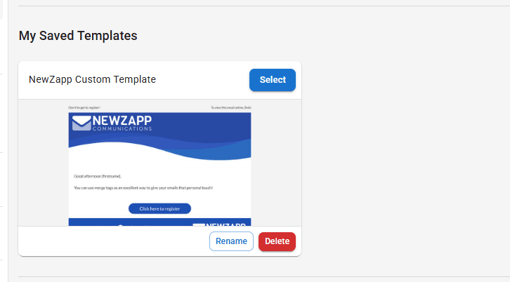
You can rename or delete the template here and if you select it you'll load up a copy of the template to use for a campaign. Any changes at that point won't change the template you've saved.
If you have any questions, please reach out to your account manager or email support@newzapp.com
- [Creating Content](https://help.newzapp.co.uk/creating-content?hsLang=en-gb#main-content)
- [Email](https://help.newzapp.co.uk/creating-content?hsLang=en-gb#email)
- [Branding](https://help.newzapp.co.uk/creating-content?hsLang=en-gb#branding)
- [Landing Pages](https://help.newzapp.co.uk/creating-content?hsLang=en-gb#landing-pages)
- [Surveys & Forms](https://help.newzapp.co.uk/surveys-forms?hsLang=en-gb)
- [Contact Management](https://help.newzapp.co.uk/contact-management?hsLang=en-gb)
- [Reports](https://help.newzapp.co.uk/reports?hsLang=en-gb)
- [Integrations](https://help.newzapp.co.uk/integrations?hsLang=en-gb)
- [Settings & FAQ's](https://help.newzapp.co.uk/settings-faqs?hsLang=en-gb#main-content)
- [Settings](https://help.newzapp.co.uk/settings-faqs?hsLang=en-gb#settings)
- [FAQ's](https://help.newzapp.co.uk/settings-faqs?hsLang=en-gb#faqs)
- [Training Videos](https://help.newzapp.co.uk/training-videos?hsLang=en-gb)
[](https://newzapp.co.uk)
Bradley House, Park Five Business Centre
Exeter
Devon. EX2 7HU
[mailto:support@newzapp.com](mailto:support@newzapp.com)
Copyright © 2024,