---
title: How to create Landing Pages
description: A landing page is a page of information hosted online that you link to from an email campaign. Landing pages are an ideal tool to avoid emails becoming too long and/or as a means to gather engagement statistics, for example which items/topics in your email campaigns do your recipients most want to read about? Very often landing pages are part of a website, but this isn’t a viable option for some organisations.
---
[Skip to content](https://help.newzapp.co.uk/how-to-create-landing-pages#main-content)
[More support](https://help.newzapp.co.uk/kb-tickets/new?hsLang=en-gb)
[](https://newzapp.co.uk/?utm_source=knowledge%20base&utm_medium=embed&utm_campaign=onsite&utm_content=NZLogo)
Open main navigation
Close main navigation
- [More support](https://help.newzapp.co.uk/kb-tickets/new)
- [Raise A Ticket](https://help.newzapp.co.uk/raise-a-ticket)
[Raise A Ticket](https://help.newzapp.co.uk/raise-a-ticket?hsLang=en-gb)
How can we help you?
- There are no suggestions because the search field is empty.
1. [Help Centre](https://help.newzapp.co.uk/?hsLang=en-gb)
2. [Creating Content](https://help.newzapp.co.uk/creating-content?hsLang=en-gb)
3. [Landing Pages](https://help.newzapp.co.uk/creating-content?hsLang=en-gb#landing-pages)
# How to create Landing Pages
A landing page is a page of information hosted online that you link to from an email campaign. Landing pages are an ideal tool to avoid emails becoming too long and/or as a means to gather engagement statistics, for example which items/topics in your email campaigns do your recipients most want to read about? Very often landing pages are part of a website, but this isn’t a viable option for some organisations.
All NewZapp customers have the tools to create landing pages for their email campaigns, but a landing page template is required with appropriate branding. Please contact us for details on the creation of a bespoke landing page template for your account.
### **How do I create a landing page for my email campaign?**
- To create a landing page, follow the steps below. A landing page template with appropriate branding is required before you begin — if a custom template is not yet set up for your account, please contact us to arrange a bespoke template.
1. Select **Pages** from the list on the left-hand side of the screen.
2. Select **New Page** in the top-right corner, then select **From Template**.
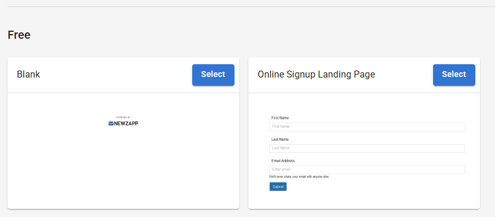
3. Select your custom template if available, otherwise there are a couple of generic landing page templates you can use.
4. Edit your landing page to meet your requirements. The builder is very similar to the email editor, however while an email has a fixed maximum width, this is not the case for landing pages.
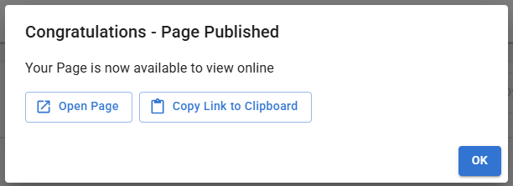
5. Once your landing page is finished, click **Next** and go through the publishing wizard.
6. Copy the link once complete.
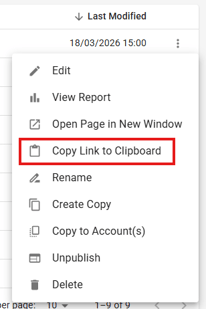
7. You will also always have access to this link from the Landing Page list by clicking the **3-dot menu** on the right-hand side.
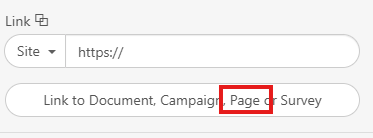
8. To add your landing page to your email, open the email editor, select the text or image you want to link, then select **Insert Link** and choose your landing page from the list.
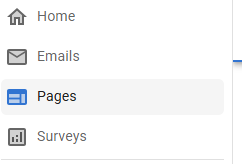
- Select "New Page" in the top corner, then From Template
- Select your custom template if available, otherwise there are a couple of generic landing page templates you can use.
- Edit your landing page to meet your requirements. The builder is very similar to the email editor, however while an email is restricted to 1200 pixels wide, this is not the case here.
- Once your landing page is finished click Next and go through the publishing wizard.
- You can copy this link once complete.
- You will also always have access to this link from the Landing Page list when clicking the 3 dot menu on the right hand side.
- You can add your Landing Page to your email links by selecting insert link and clicking here:
### **How do I edit and republish a landing page?**
You can edit and republish a landing page at any time — the URL will remain the same. To do so:
You can edit the content and republish your Landing Page! The URL will remain the same!
1. Go to the Landing Page list and open the **3-dot menu** on the right-hand side of the page you want to edit.
2. Select **Unpublish** to return the page to draft status.
3. Make your changes in the editor.
4. Click **Next** and go through the publishing wizard again to republish.
- [Creating Content](https://help.newzapp.co.uk/creating-content?hsLang=en-gb#main-content)
- [Email](https://help.newzapp.co.uk/creating-content?hsLang=en-gb#email)
- [Branding](https://help.newzapp.co.uk/creating-content?hsLang=en-gb#branding)
- [Landing Pages](https://help.newzapp.co.uk/creating-content?hsLang=en-gb#landing-pages)
- [Surveys & Forms](https://help.newzapp.co.uk/surveys-forms?hsLang=en-gb)
- [Contact Management](https://help.newzapp.co.uk/contact-management?hsLang=en-gb)
- [Reports](https://help.newzapp.co.uk/reports?hsLang=en-gb)
- [Integrations](https://help.newzapp.co.uk/integrations?hsLang=en-gb)
- [Settings & FAQ's](https://help.newzapp.co.uk/settings-faqs?hsLang=en-gb#main-content)
- [Settings](https://help.newzapp.co.uk/settings-faqs?hsLang=en-gb#settings)
- [FAQ's](https://help.newzapp.co.uk/settings-faqs?hsLang=en-gb#faqs)
- [Training Videos](https://help.newzapp.co.uk/training-videos?hsLang=en-gb)
[](https://newzapp.co.uk)
Bradley House, Park Five Business Centre
Exeter
Devon. EX2 7HU
[mailto:support@newzapp.com](mailto:support@newzapp.com)
Copyright © 2024,