---
title: Generating an API key in your Account
description: NewZapp API keys allow other applications and services to securely connect to your NewZapp account.
---
[Skip to content](https://help.newzapp.co.uk/generating-an-api-key-in-your-newzapp-account#main-content)
[More support](https://help.newzapp.co.uk/kb-tickets/new?hsLang=en-gb)
[](https://newzapp.co.uk/?utm_source=knowledge%20base&utm_medium=embed&utm_campaign=onsite&utm_content=NZLogo)
Open main navigation
Close main navigation
- [More support](https://help.newzapp.co.uk/kb-tickets/new)
- [Raise A Ticket](https://help.newzapp.co.uk/raise-a-ticket)
[Raise A Ticket](https://help.newzapp.co.uk/raise-a-ticket?hsLang=en-gb)
How can we help you?
- There are no suggestions because the search field is empty.
1. [Help Centre](https://help.newzapp.co.uk/?hsLang=en-gb)
2. [Integrations](https://help.newzapp.co.uk/integrations?hsLang=en-gb)
# Generating an API key in your Account
## NewZapp API keys allow other applications and services to securely connect to your NewZapp account.
**Important:** API keys provide access to your NewZapp account, so they should be treated like a password and kept secure.
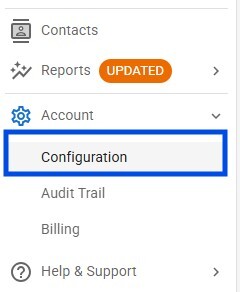
### Step 1 – Open Account Configuration
From the main NewZapp menu:
1. Select **Account**.
2. Click **Configuration**.
### Step 2 – Open the API settings
Within **Account Configuration**, select the **API** tab from the menu across the top of the page.
Click **Create API Key**.

### Step 3 – Name your API key
The **Add API Key** window will appear.
Enter a name that clearly identifies what the API key will be used for.
For example:
- Power Automate
- CRM Integration
- Website Integration
- HR System
Click **Add Key**.
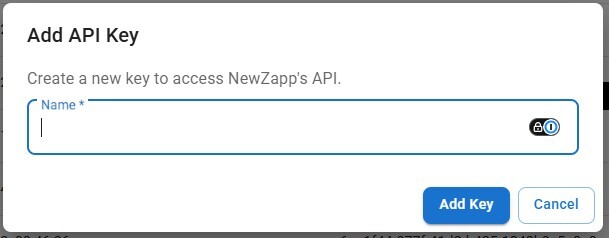
Using a descriptive name makes it much easier to identify the integration later, particularly if you create several API keys.
### Step 4 – Copy your API key
Your new API key will now appear in the **API Keys** section of your account.

Copy the key and enter it into the application or service that you are connecting to NewZapp.
### Keep your API key secure
Your API key provides access to the NewZapp API and should be treated like a password.
Do not share your API key unnecessarily or include it in emails, screenshots, publicly accessible documents or source code.
If an API key is no longer required, it should be removed or revoked from your NewZapp account.
### Next Steps
Now you have your key - follow the steps here: [https://help.newzapp.co.uk/api-integration](https://help.newzapp.co.uk/api-integration?hsLang=en-gb) to begin wiring up your 3rd party platform.
- [Creating Content](https://help.newzapp.co.uk/creating-content?hsLang=en-gb#main-content)
- [Email](https://help.newzapp.co.uk/creating-content?hsLang=en-gb#email)
- [Branding](https://help.newzapp.co.uk/creating-content?hsLang=en-gb#branding)
- [Landing Pages](https://help.newzapp.co.uk/creating-content?hsLang=en-gb#landing-pages)
- [Surveys & Forms](https://help.newzapp.co.uk/surveys-forms?hsLang=en-gb)
- [Contact Management](https://help.newzapp.co.uk/contact-management?hsLang=en-gb)
- [Reports](https://help.newzapp.co.uk/reports?hsLang=en-gb)
- [Integrations](https://help.newzapp.co.uk/integrations?hsLang=en-gb)
- [Settings & FAQ's](https://help.newzapp.co.uk/settings-faqs?hsLang=en-gb#main-content)
- [Settings](https://help.newzapp.co.uk/settings-faqs?hsLang=en-gb#settings)
- [FAQ's](https://help.newzapp.co.uk/settings-faqs?hsLang=en-gb#faqs)
- [Training Videos](https://help.newzapp.co.uk/training-videos?hsLang=en-gb)
[](https://newzapp.co.uk)
Bradley House, Park Five Business Centre
Exeter
Devon. EX2 7HU
[mailto:support@newzapp.com](mailto:support@newzapp.com)
Copyright © 2024,